How to Edit Past Attendance Records
If you need to modify past attendance records, you have the option to rectify them by providing valid reasons for the changes.
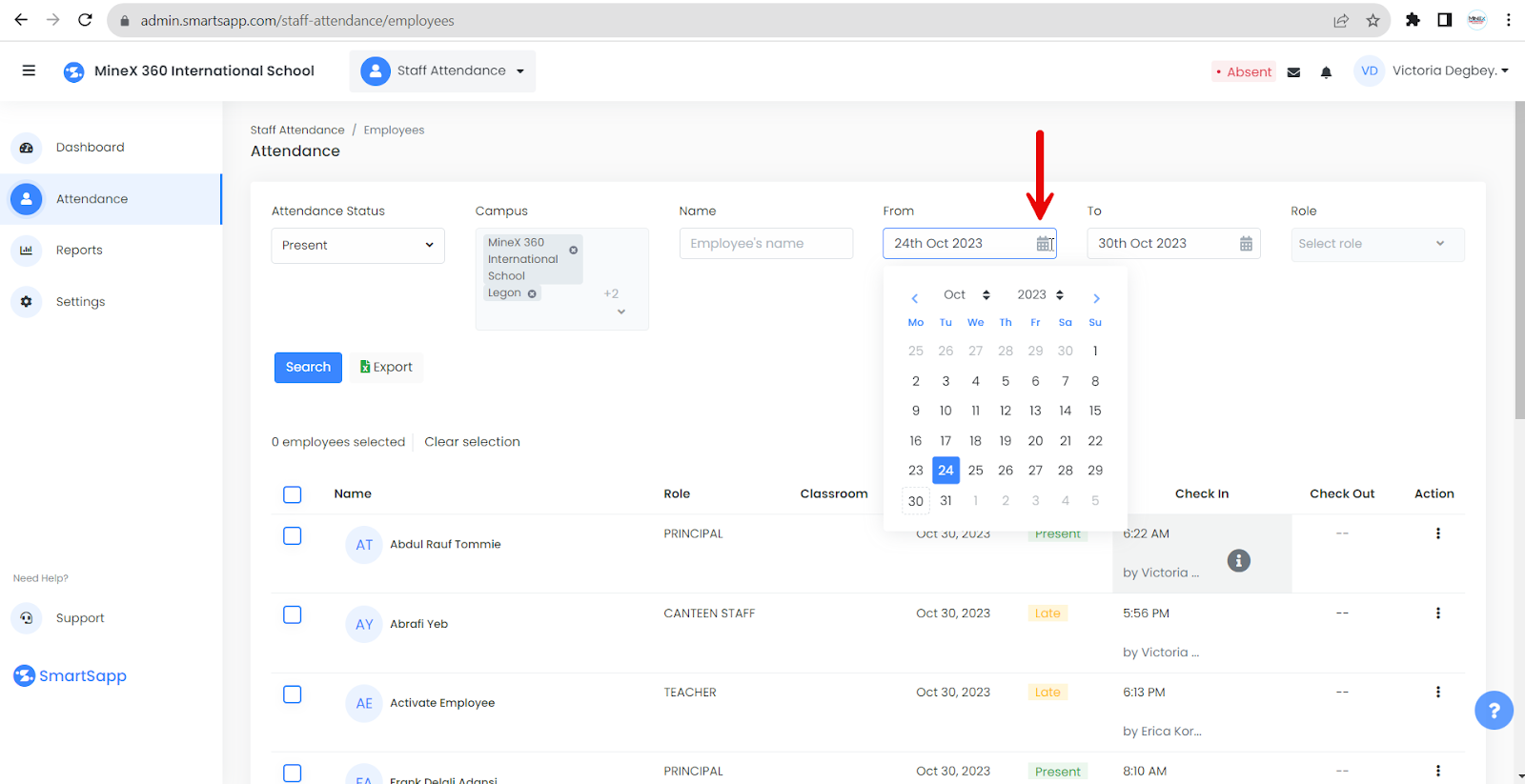
In the "Attendance" section, select the date for which you want to edit attendance records.
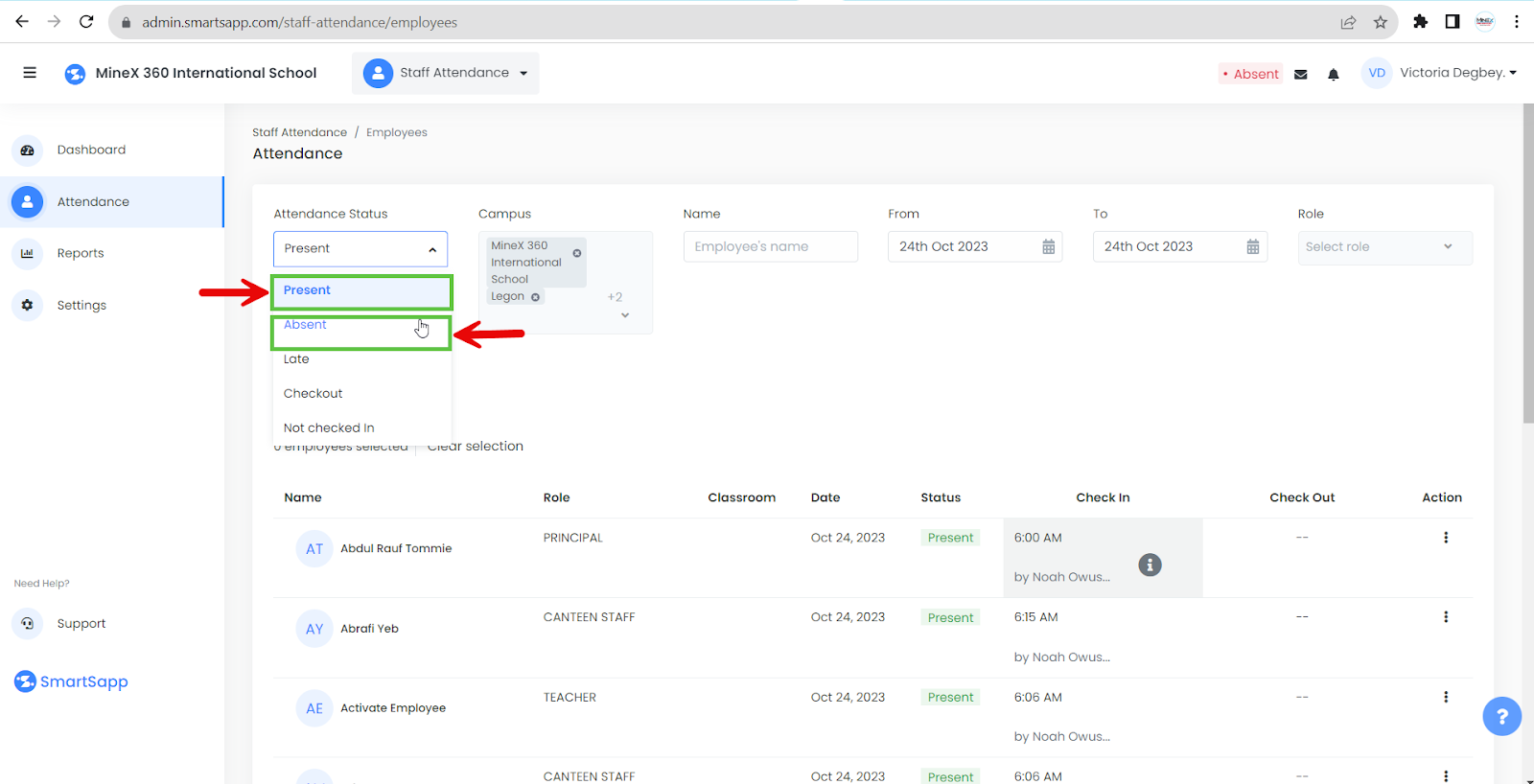
Choose "Present/Absent" status from the dropdown menu for the Attendance status depending on the change you wish to make.
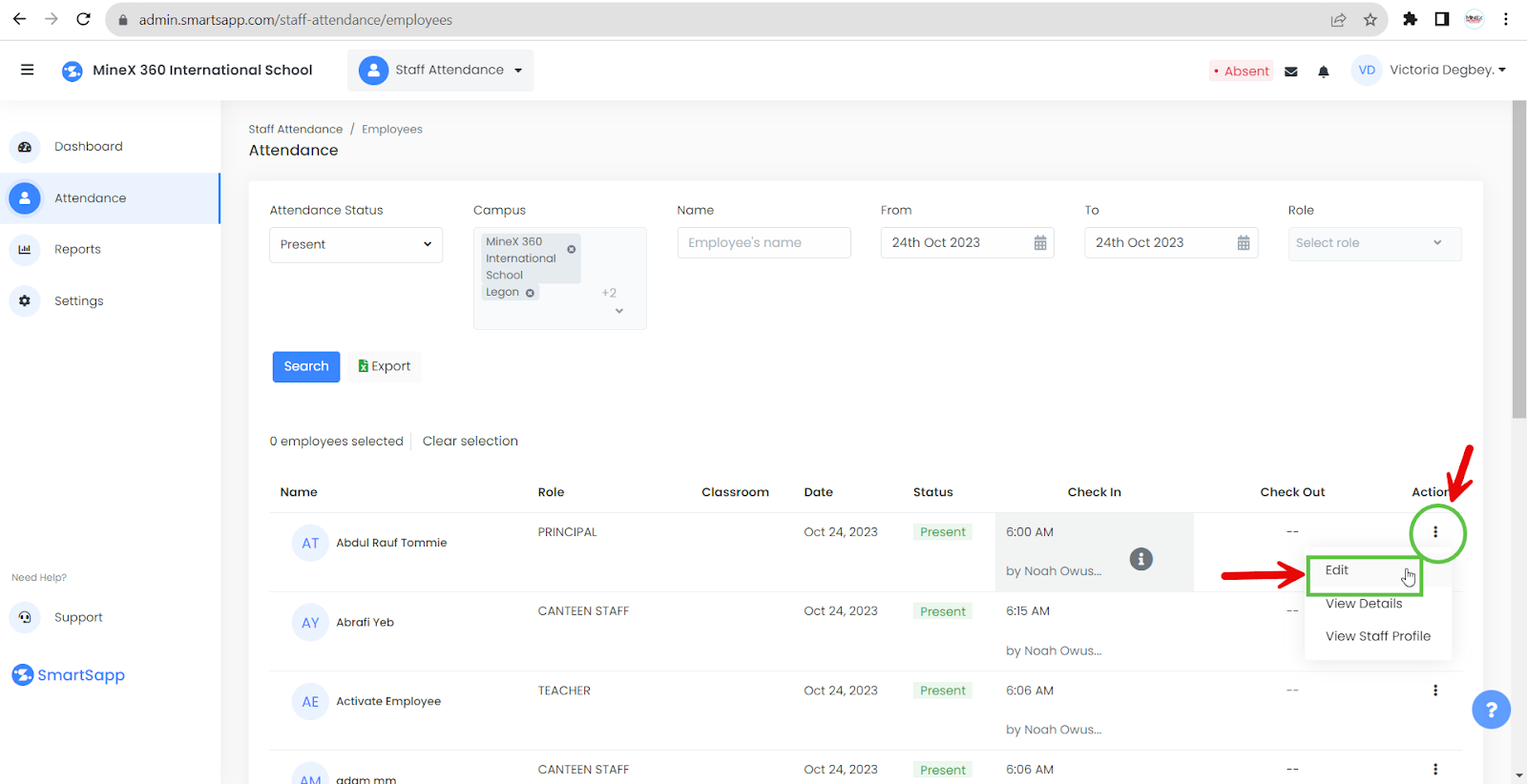
Click on the three dots located beneath the Action button next to the specific staff member whose attendance status you want to modify. From the list of options, select “Edit”
Choose "Present/Absent" status from the dropdown menu for the Attendance status depending on the edit you wish to make
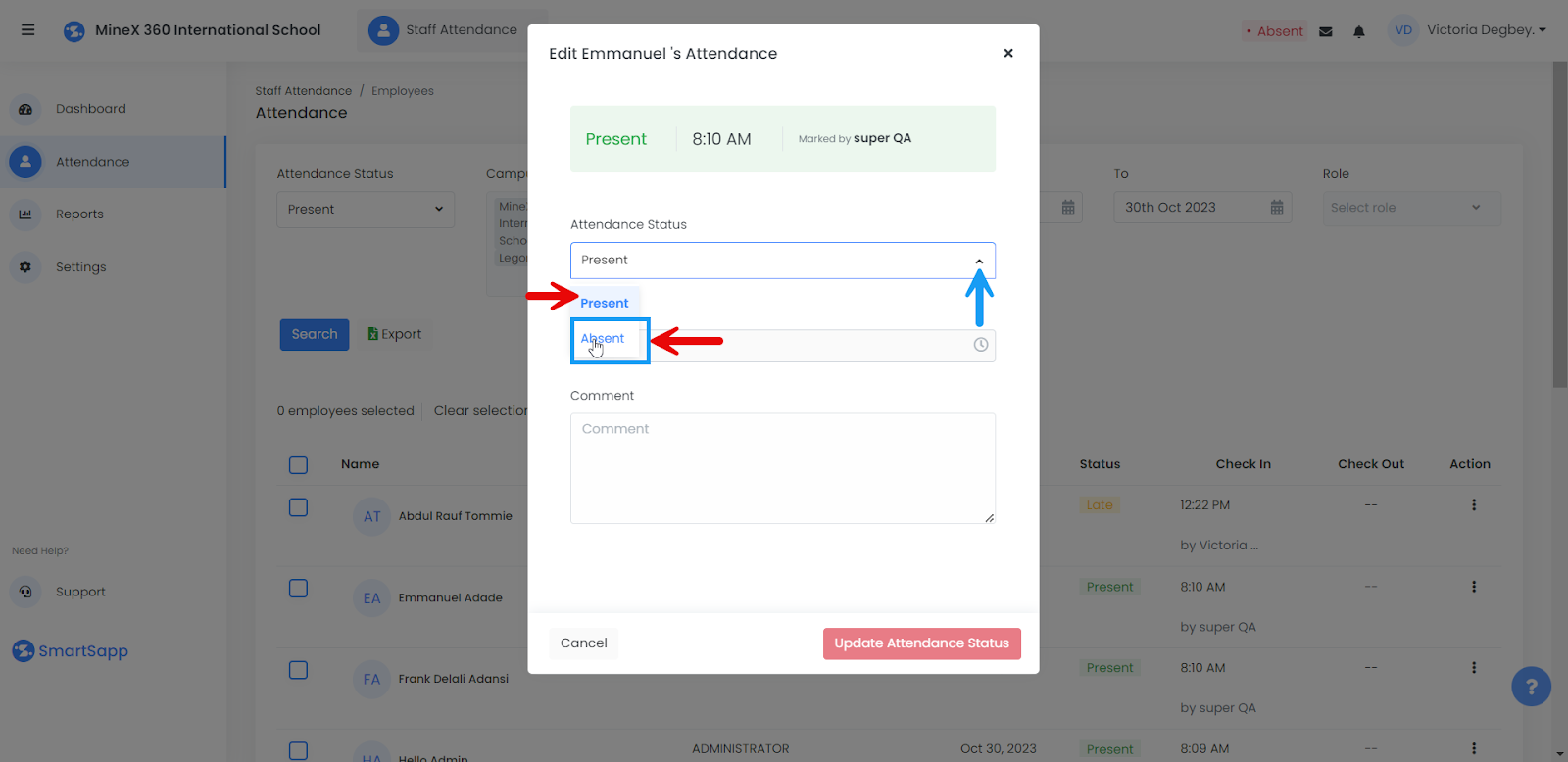
Click on the clock icon to modify the time to reflect the actual time the staff member was present.
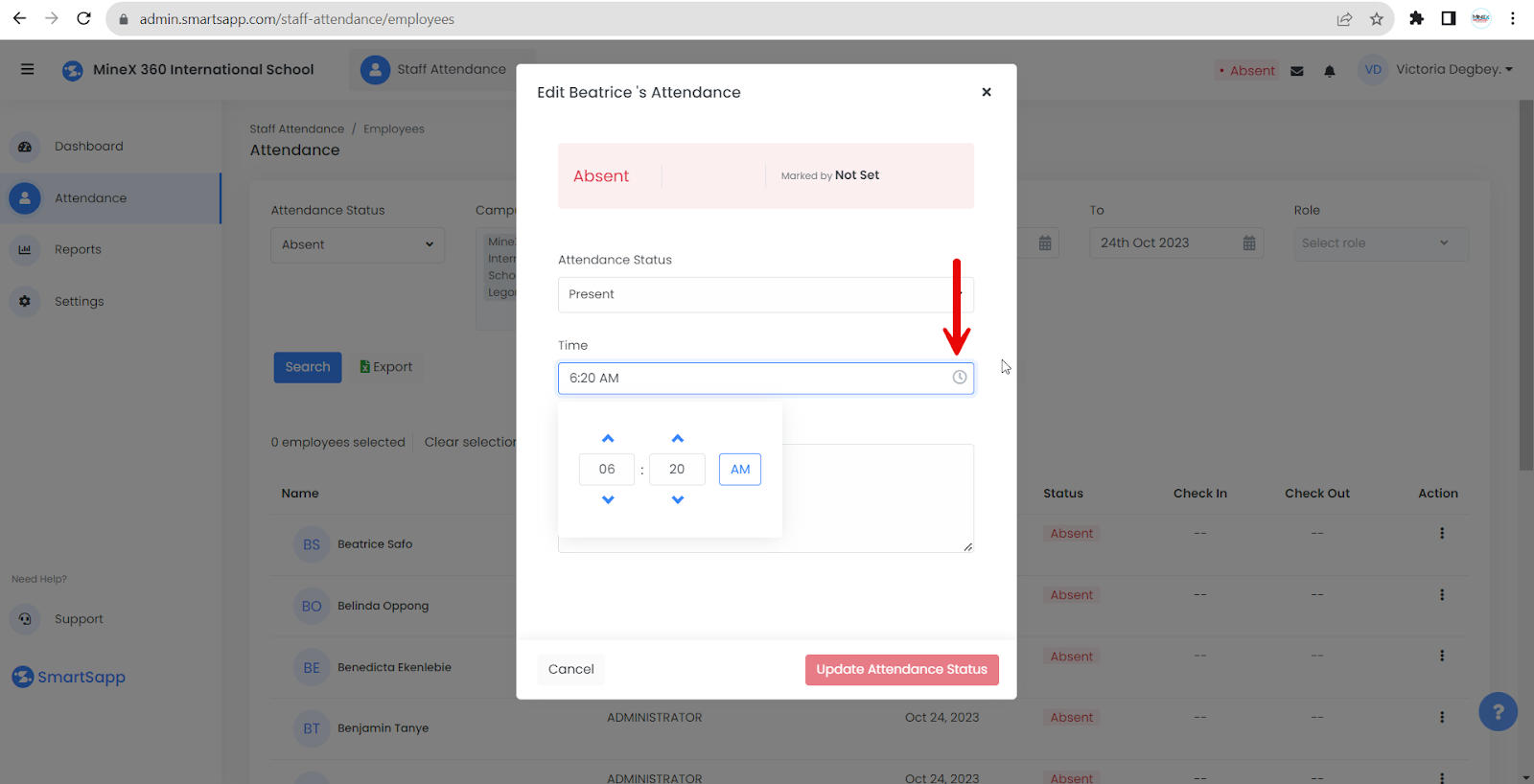
Provide the reason for the edit in the provided field, then click on "Update Attendance Status" to confirm the changes made to the staff member's attendance status.

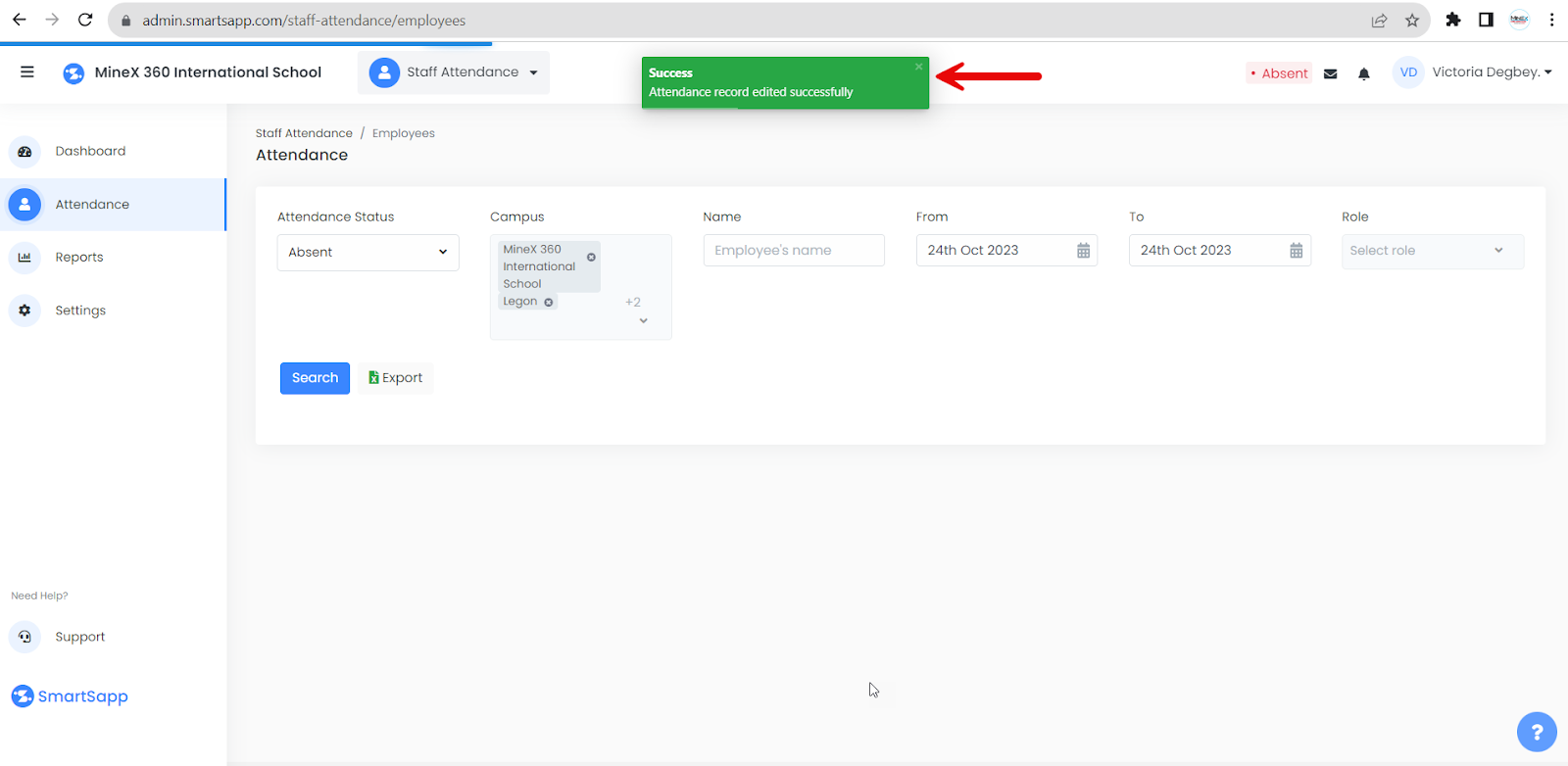
Upon successful edit, you will receive a confirmation message indicating that the edit was completed successfully.